
How to add images and video to a Shopify collection grid without code
With Depict’s Supergrid editor you can drop hero banners, campaign videos, or influencer reels directly in‑line with products—zero code or developers needed.
By Alex Hamben
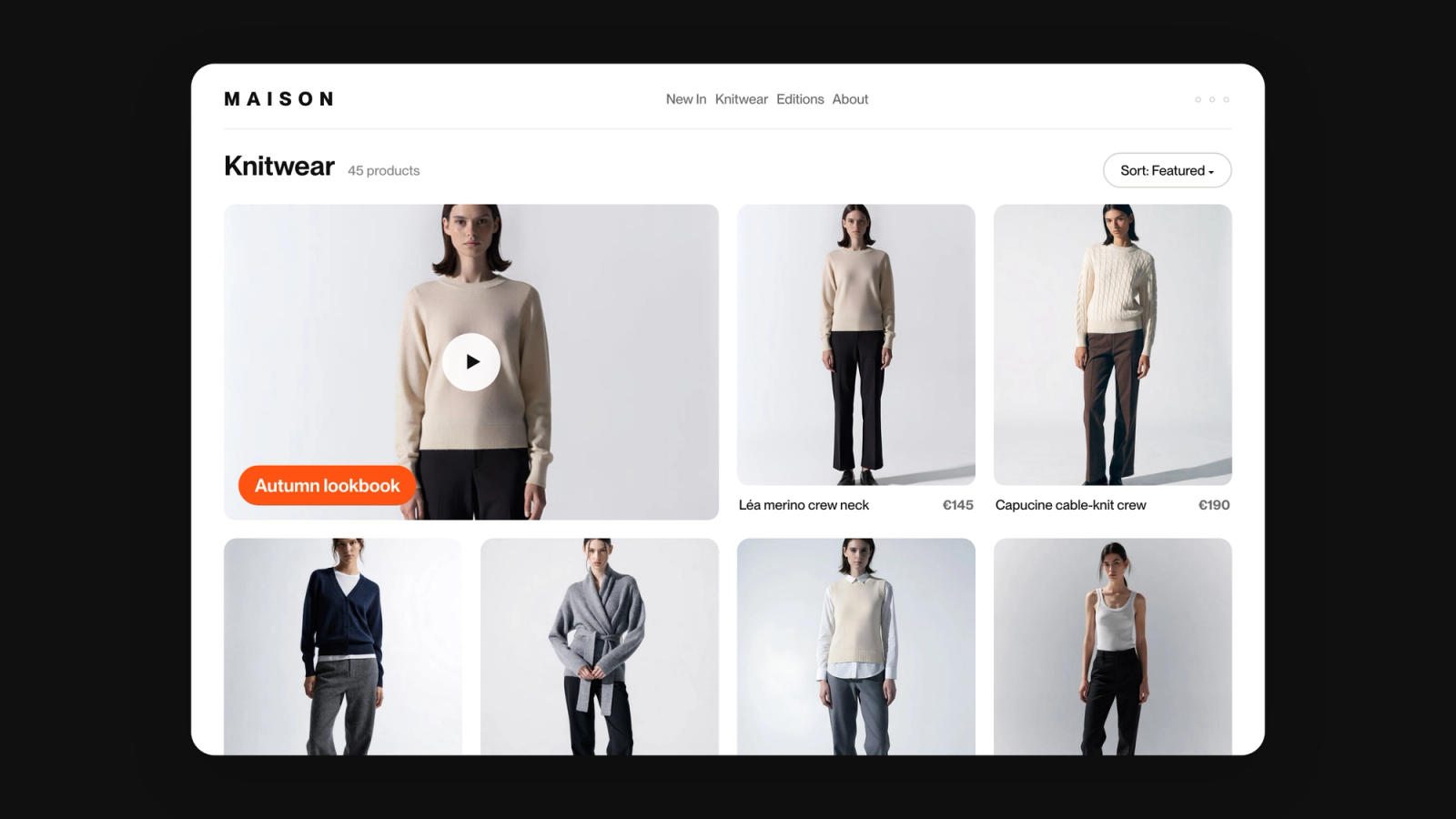
Why upgrade your collection grid?
- Shoppers scan grids first. Eye‑tracking tests show 94 % of users focus on the product grid before scrolling elsewhere.
- Rich media lifts revenue. In one A/B test, adding large creative assets inside a product grid drove an extra $106 k in monthly sales for the winning variation.
- Shopify now makes it easy. Online Store 2.0 sections allow drag‑and‑drop blocks—no Liquid edits required.
With Depict’s Supergrid editor you can drop hero banners, campaign videos, or influencer reels directly in‑line with products—zero code or developers needed.
What you need before you start
- A live Shopify store running an Online Store 2.0 theme.
- Depict installed (free trial available).
- High‑resolution image or video assets optimised to < 500 kB each.
- 10 minutes.
Step‑by‑step tutorial
1 — Open Depict within the Shopify Admin
- Go from Shopify Admin → Apps → Depict

2 — Open the collection you want to enrich
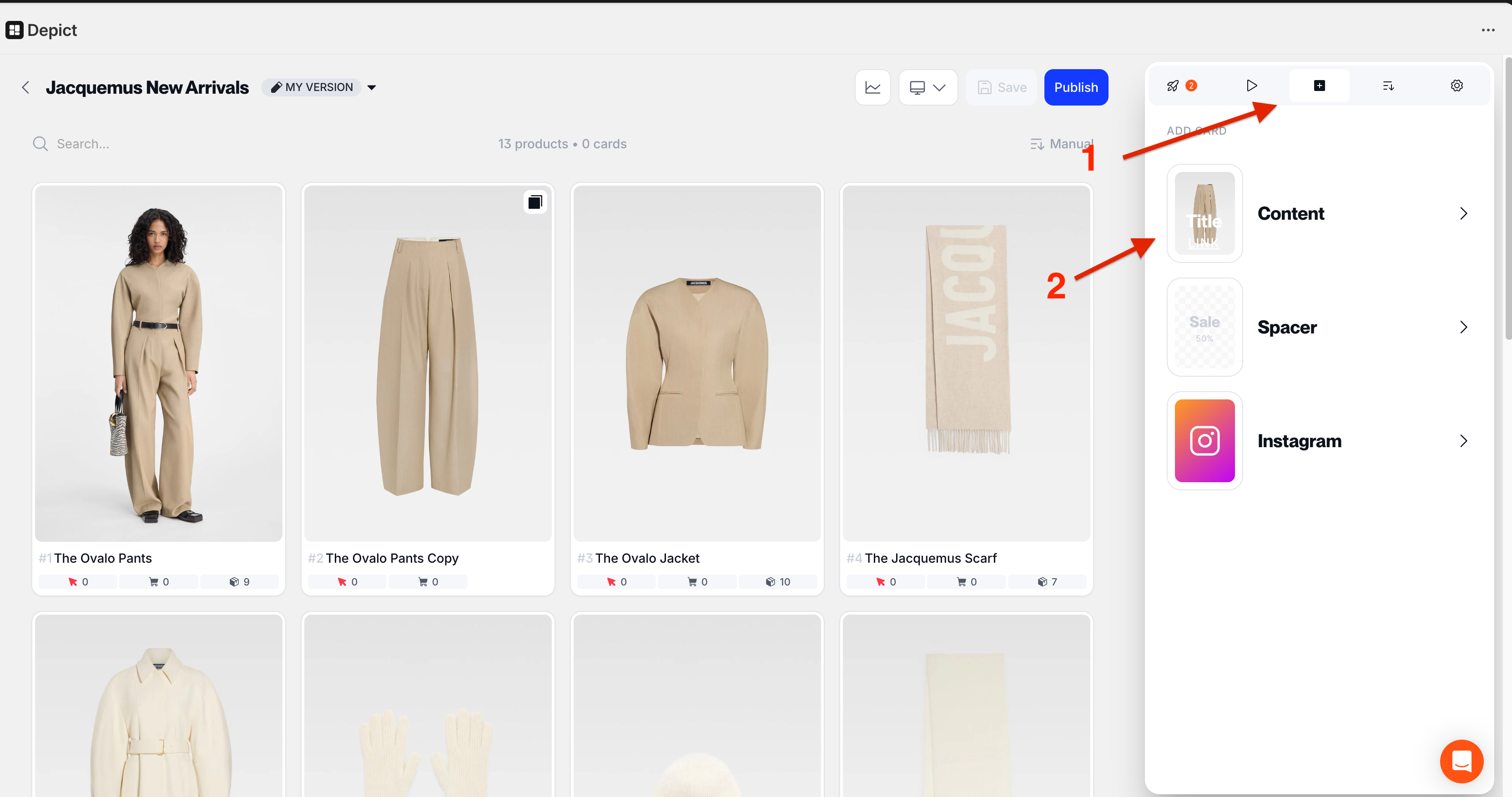
Your collection products will load in a visual grid, with a control panel on the right.
3 — Insert an Image/Video Banner block
- In the control panel on the right, select the “Add Content Card” tab → "Content"
- Select a media file (from your Shopify media library, or upload one from your computer.
- Use the right‑hand panel to set the size, link target (e.g., to a product detail page), text, and visibility (mobile, desktop, or both).
- Use your mose to drag-and-drop the content card within the grid.

4 — Pin priority products around the media
Place related products around the banner to frame the story—a trick that lifts click‑through up to 25 % in fashion tests.
5 — Save & publish
Click Save → Publish. Depict will sync the layout back to Shopify instantly—no theme edits.
You can use the "Preview" tab in the side panel to see what it looks like on your storefront from within Depict. From here, you can click "Grid settings" to adjust grid spacing, image alignment, and see a desktop preview.

Best‑practice checklist
| Do | Don’t |
|---|---|
| Keep images < 500 kB and videos < 3 MB to avoid CLS penalties. | Auto‑play sound—Google will nuke your Core Web Vitals. |
| Write alt‑text that starts with the keyword “Shopify collection banner”. | Use identical creative in every collection (fatigue). |
| A/B test banner vs. no‑banner for high‑traffic collections. | Ignore mobile cropping—preview on iOS & Android. |
Ready to make your grids shoppable stories?
- Start Depict free for 7 days
- Or book a 15‑min demo with our merchandising strategist